Assignment settings
This page explores in more detail the settings for the Assignment activity once you have added it to your course and also covers the Site administration settings.
Note that if you want to edit an existing assignment, click the Edit link to its right and choose the action you wish to take, e.g. 'Edit settings'.
General
- In the Description, give a general explanation of the assignment. Check the box if you want this description to display on the course page.
- In Additional files, you can add files which may be of help to the students as they do their assignment, such as example submissions or answer templates.
- In Activity instructions, explain in greater detail what students must do. This is displayed when they edit and submit their assignment.
Availability
Allow submissions from
This stops students from submitting before the shown date, but it
doesn't hide the assignment and any included instructions or materials.
Due date
Submissions are still allowed after this date but will be marked as
late. Disable it by unticking the checkbox. Assignments without a due
date will appear on the dashboard with 'No Due Date' displayed.
Cut-off date
After this date, the submit button will be hidden, and students will not
be able to submit.
Remind me to grade by.
A date needs to be entered here for the assignment to display on the
teacher's Timeline block and in the
Calendar. It will show when at least one student
has submitted.
Time limit
An assignment may have a time limit, similar to a the Quiz activity.
However, the time limit does not prevent learners from submitting after
the time has passed. They can still submit but their submission is
marked as submitted after the time limit. The time limit feature must be
enabled by the admin from Site administration > Plugins > Assignment
settings > Enable timed assignments.
Submission types
Here you can decide how you wish students to submit their work to you.
Note: If Submission comments are enabled in Administration>Plugins>Activity modules>Assignment>Submission plugins, students will be able to add a note to their teacher on submitting work. If Anonymous submissions are enabled, student comments display in the gradebook as from "Participant 01 etc" to avoid revealing identities.
Online text
Students type their responses directly in Moodle using a text editor
(such as the Atto editor which automatically
saves text at regular intervals.)
It's possible to set a word limit on an online text assignment. Students get a warning if they try to exceed the word limit. Numbers are counted as words and abbreviations such as I'm or they're are counted as single words.
File submissions
Students can upload one or more files of any type the teacher can open.
The teacher can annotate uploaded PDFs, docx and odt files within the
browser, and on saving, the annotated file is made available to the
student. (Check with your admin that
Ghostscript and a document
converter are enabled, if you can't
annotate uploaded files.)
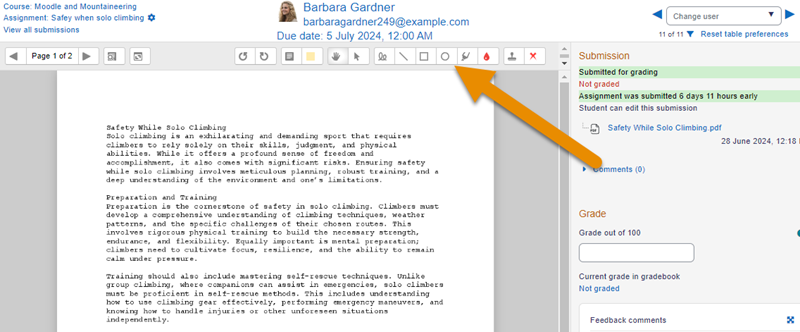
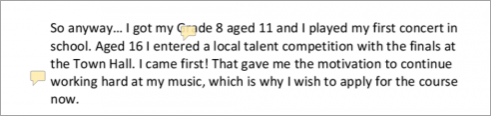
Comments may be collapsed to make it easier to read the original text:
Maximum submission size
The maximum upload size refers to each file a student uploads. It cannot
be larger than the limit in the Course settings.
Accepted file types
The teacher can specify the types of file the students may upload to the
assignment. A file type selector appears upon clicking 'Choose',
offering a choice of different file types. (See the video File type
selection for more information.) Leaving
the field blank will allow all file types.
If the file types have been restricted, then when students attempt to
submit the assignment, they will see a message telling them which files
are accepted: 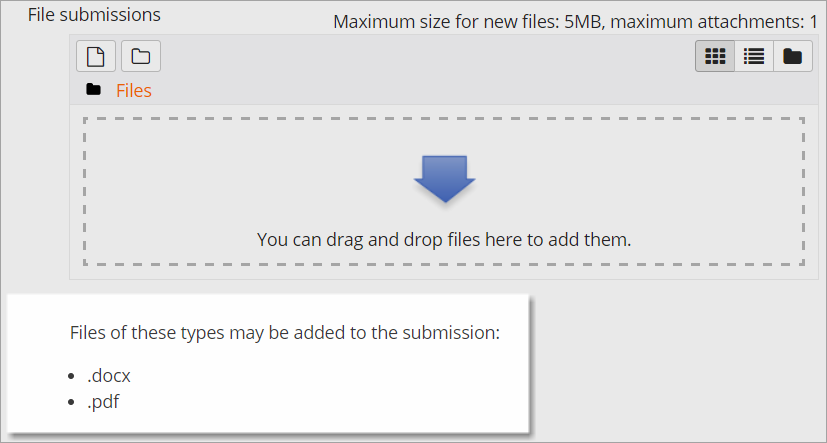
Feedback types
Feedback comments
With this enabled, markers can leave comments for each submission (which
appear on the assignment grading screen.) Audio and video comments may
also be left, using the icon in the text editor.
Annotate PDF appears if this setting is enabled by the Site administrator in the Manage assignment feedback plugins section of Site admin and will allow the teacher to annotate using comments, stamps and other features.
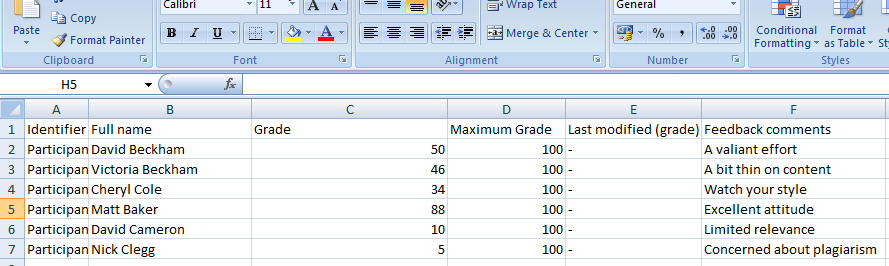
Offline grading worksheet
This is useful if you wish to download the grading list and edit it in a
program such as MS Excel.
|
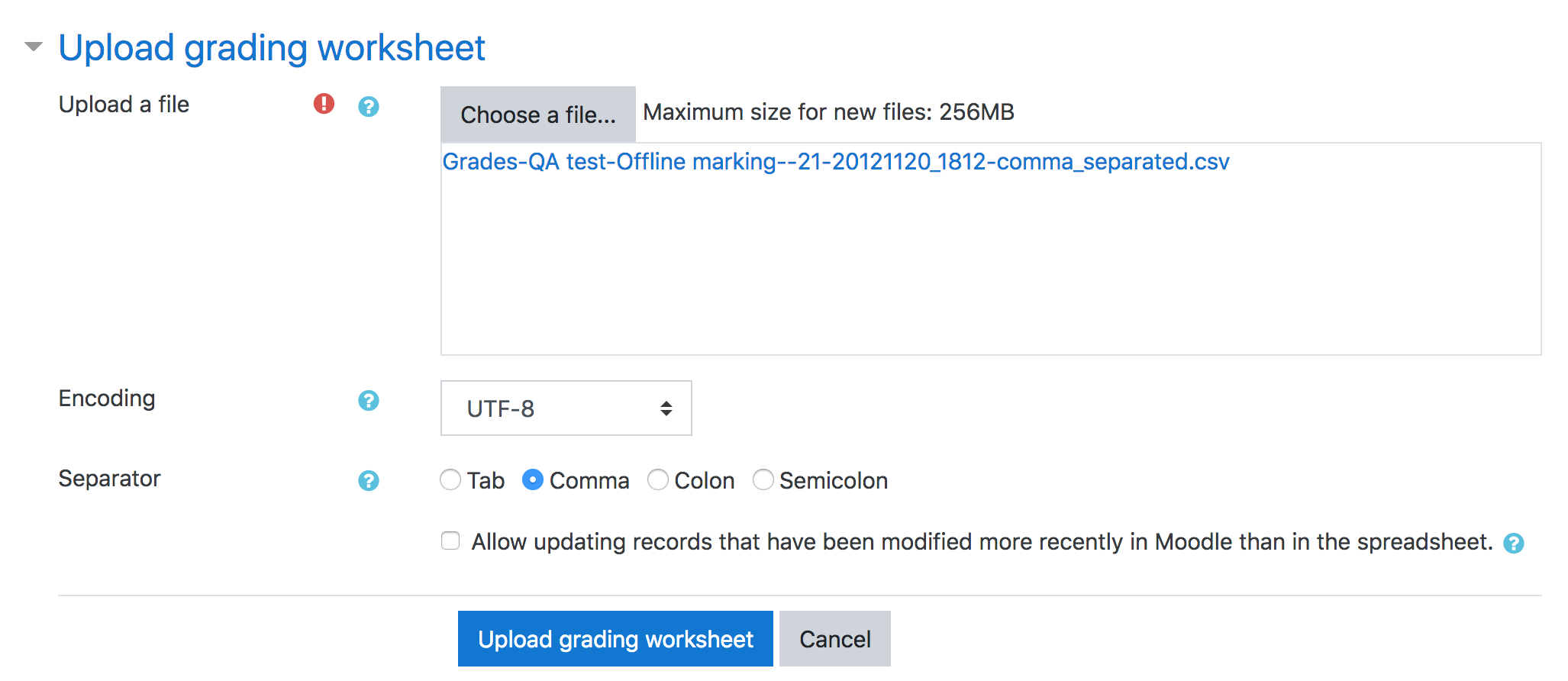
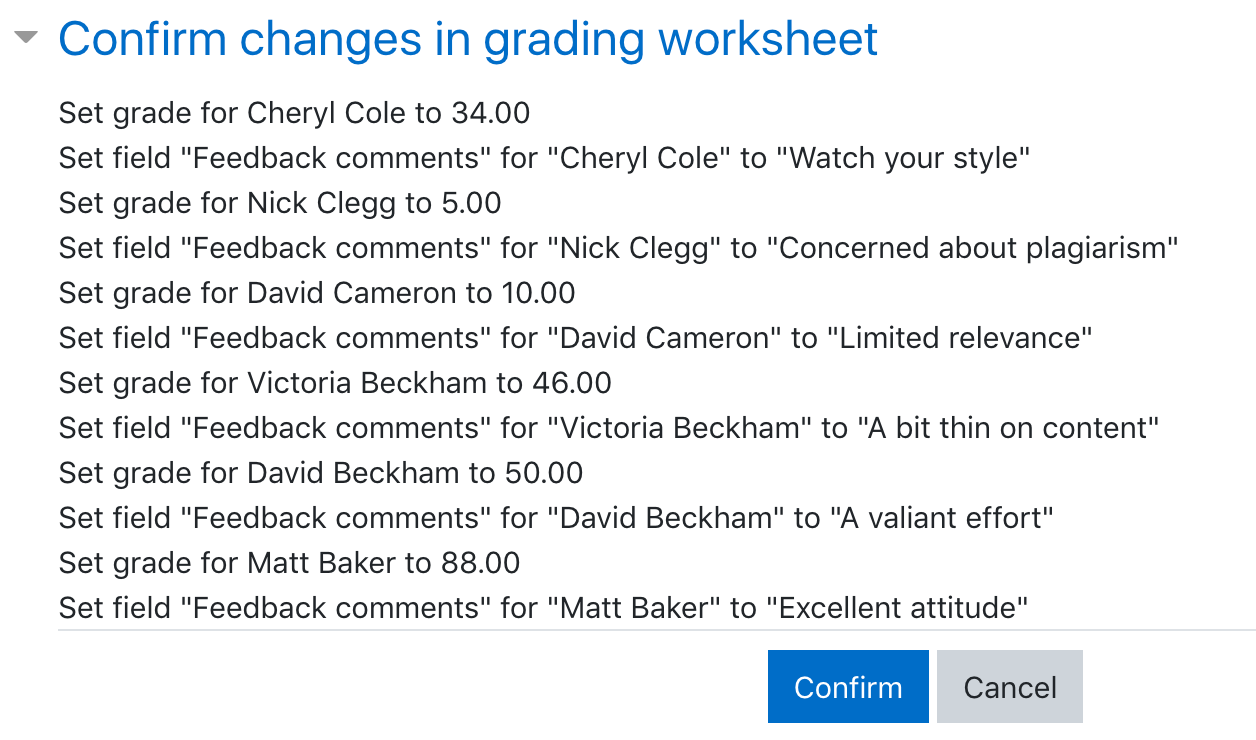
When the teacher has completed their grading offline, they can then upload the spreadsheet, confirm the changes and the grades and comments will be transferred over into Moodle's gradebook:
| 
|
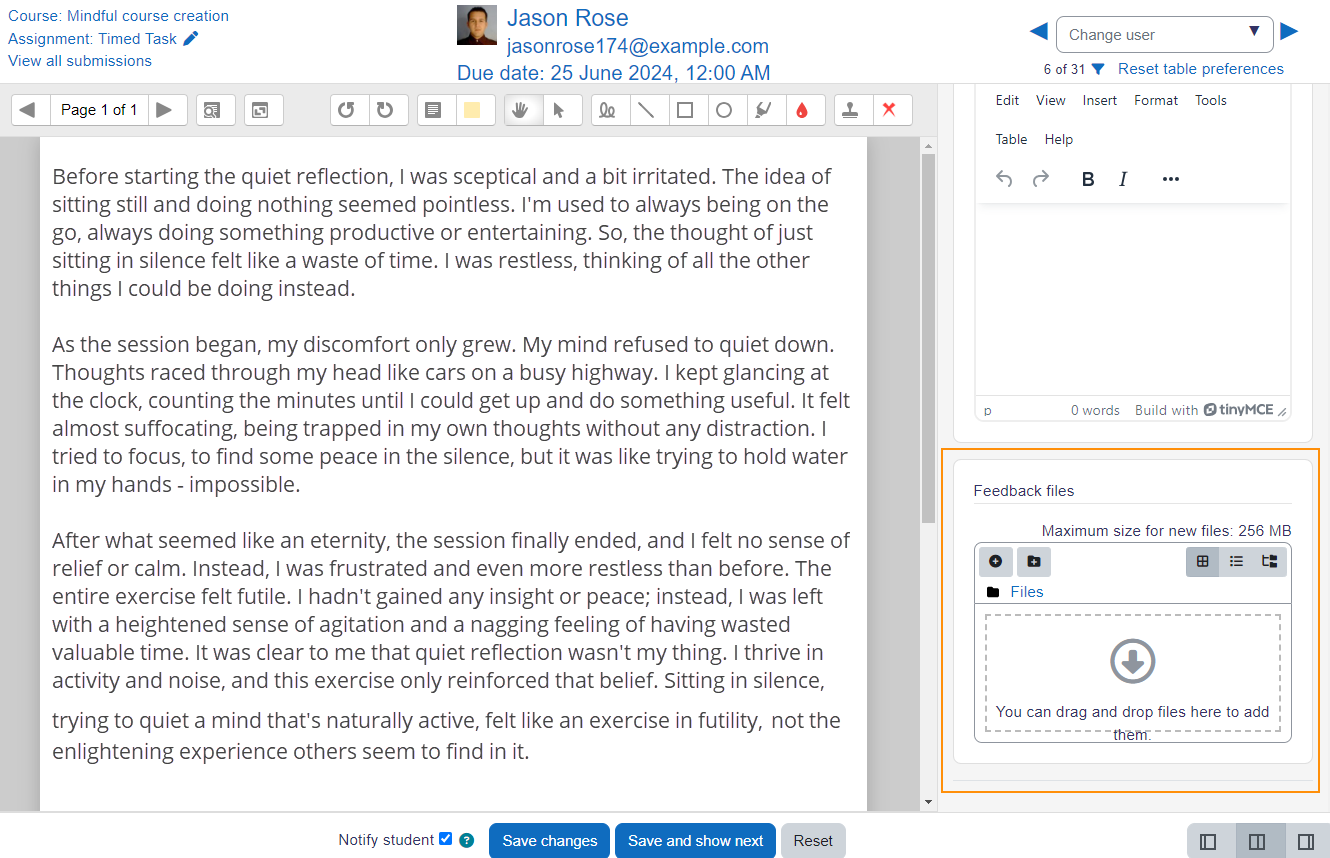
Feedback files
This allows markers to upload files with feedback when marking. These
files may be the marked up student assignments, documents with comments,
a completed marking guide, or spoken audio feedback. It enables the
Feedback Files column in the assignment grading screen (accessed from
the Submissions link in Assignment navigation). To upload feedback
files, click the Grade button top right and then upload either with drag
and drop or using the File picker.
Alternatively, click the three dots next to a specific student in the
grading screen, click Grade and upload in the same way.
|
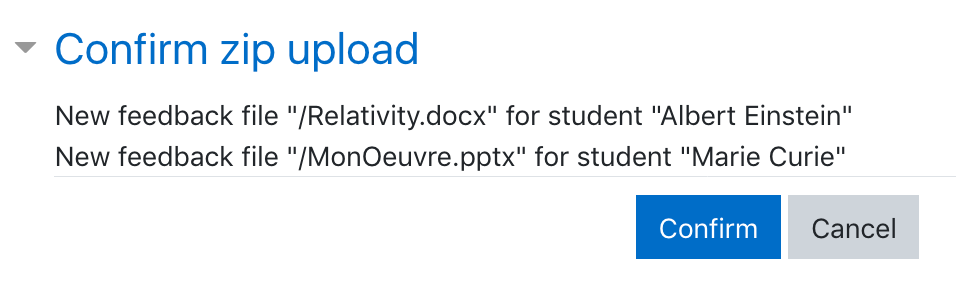
Uploading multiple feedback files is also possible:
- Download the students' assignments using the "Download all submissions" link.
- Extract the folder offline and add your comments to the student's submissions. Keep the names the same.
- Select the students' submissions and zip them into a new folder. Important: Don't just edit them inside their original folder and re-zip this; it will not work. The folder name does not matter as long as the feedback files have the same names as before.
- Upload this newly zipped folder.
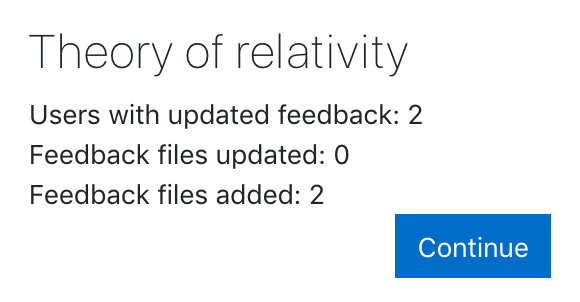
- You will be presented with a confirmation screen displaying your feedback files. (If you zip files from a Mac, make sure to remove the folder _MACOSX)
| 
|
Comment inline
This usefully allows you to comment directly on an 'online text' type
submission.
Submission settings
Require students click submit button
If this is set to 'No' students can make changes to their submission at
any time. (If you want to stop them changing work once you are ready to
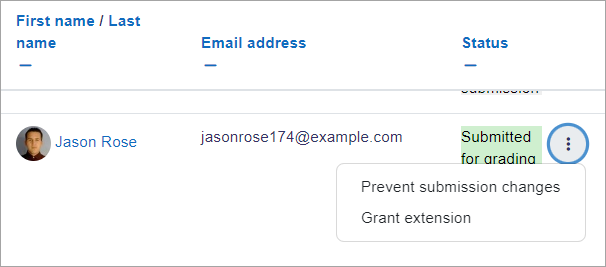
grade, click the Submissions link; locate the student and From the
Status column, click the the three dots icon and select 'Prevent
submission changes'.)
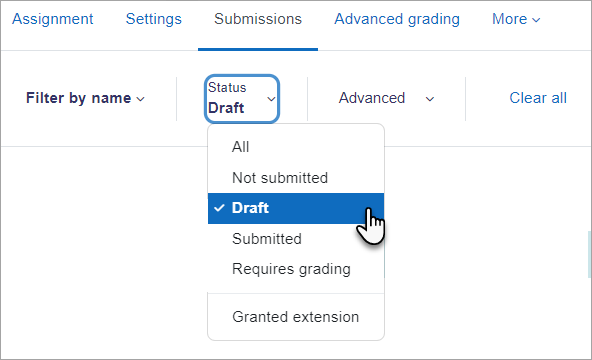
If set to 'Yes', students can upload draft versions of the assignment until such time as they are ready to submit. Clicking the submit button tells the teacher they have finished drafting and want the work to be graded. They can no longer edit it and must ask the teacher to revert to draft status if they need to change it again. To do that, click the Submissions link, locate the student and from the Status column, click the three dots icon and select 'Revert the submission to draft'. To do this in bulk, select the relevant students and from the Status menu at the top of the grading screen, select your chosen action.
| 
|
Require that students accept the Submission statement
An administrator can define a "Submission statement" (see below) i.e. a
statement where students promise the work is their own and which they
must agree to before submitting their work. If the administrator has
given teachers the option of using a submission statement or not, then
it will be available in the assignment settings screen. If the
administrator has forced the statement throughout the site, a teacher
will not have this option in the settings but a student will see the
statement when accessing their assignment. Note: The admin can set
different submission statements for individual or group submissions.
Additional attempts (previously named Attempts reopened)
Whether a student can make additional attempts at the assignment.
Changing this setting to 'Manually' allows the teacher to go into the
grader and in the "Attempt settings" section set "Allow another attempt"
to either "yes" or "no". Changing the setting to "Automatically until
pass" requires that "Grade to pass" in the Grade section be set. If the
student does not receive a passing grade then the submission will
automatically be reopened and another attempt can be made.
Maximum attempts
Here you can decide how many attempts to allow if students can resubmit.
If a student has to keep trying until they get a pass grade, you might
decide to limit the attempts even though they have not yet passed - or
they might be trying for ever!
Groups submission settings
These settings allow students to collaborate on a single assignment, e.g. working in the same online area or uploading, editing and reuploading an MS Powerpoint in the common assignment area.
When grading, the teacher may choose to give a common grade and feedback to all students in the group or to give individual grades and feedback to each member.
Require group to make submission
Students not in a group can still submit assignments unless this is
forced in Site administration > Plugins > Assignment > Assignment
settings. Moodle will then display a message You're not a member of
any group; please contact your teacher , and the student will not be
able to submit the assignment.
Require all group members submit
This setting will only appear if the teacher has ticked the "Require
students click submit button" earlier. The assignment will not be
classed as "submitted" until all members of the group have made a
contribution. When one student has submitted, the other members of the
group will be able to see who still has to submit.
Grouping for student groups
If a particular grouping is selected here, then the gradebook will
display any other groups and non-grouped students in the "default
group", while naming the group(s) that are in the chosen grouping. If
"none" is selected, then the gradebook will display the names of all
groups and put any non-grouped students in the "default group". See this
forum post on grouping for student
groups for
examples of how this might be used.
Notifications
(Note that if you are using group mode then course teachers need to be members of the group in order to receive submission and late submission notifications.)
Learners receive the following assignment notifications (via their preferred notification format):
- Assignment due in 7 days
- Upcoming assignment due (48 hours before the due date)
- Assignment overdue.
Grade
- See Grade points and Advanced grading methods for more information on the settings here.
- Setting a passing grade may be connected with Activity completion and Restrict access such that a student will not be able to access a follow up activity until they have passed this assignment.
Anonymous submissions
This hides students' names when grading and instead shows randomly generated Participant numbers.
With Anonymous submissions, students cannot see the final grade until all of the students' names have been revealed. Rubrics will also be hidden from students' view until the names are revealed. To reveal student names after you are finished grading, look under Assignment settings > Reveal student identities. Feedback comments will appear whether or not student names are hidden or revealed. Note that this level of anonymity might not suit the privacy requirements of your organisation. See MDL-35390 for more details.
Users with the capability View student identities when Anonymous submissions are enabled (by default managers only) can view student identities and participant numbers.
Users with the capability View anonymous events in reports (by default managers only) can view student submissions to assignments with Anonymous submissions (in Moodle 3.9 onwards).
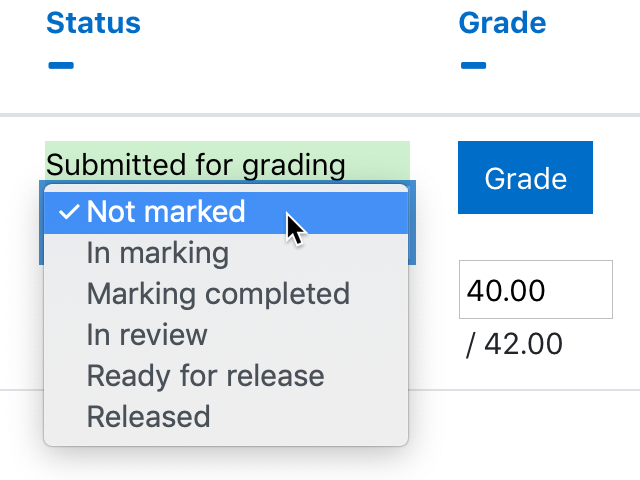
Marking (grading) workflow
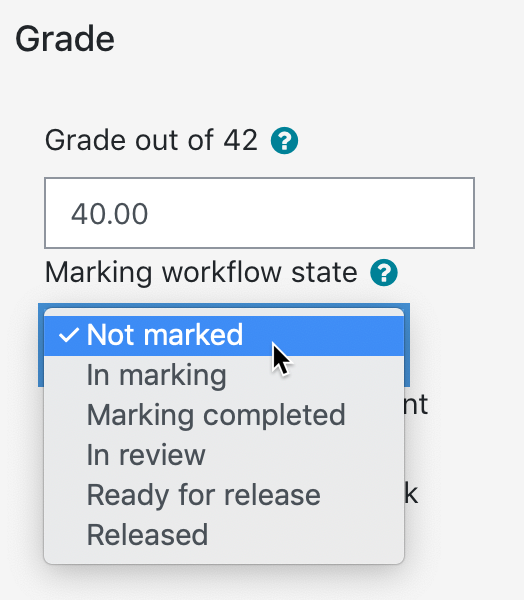
This lets you keep grades and feedback hidden until you are ready to release them to students. It is also useful if you want to show your progress in grading, or co-ordinate multiple markers/graders.
| 
|
The phases are:
- Not marked (the marker has not yet started)
- In marking (the marker has started but not yet finished)
- Marking completed (the marker has finished but might need to go back for checking/corrections)
- In review (the marking is now with the teacher in charge for quality checking)
- Ready for release (the teacher in charge is satisfied with the marking but wait before giving students access to the marking)
- Released (the student can access the grades/feedback)
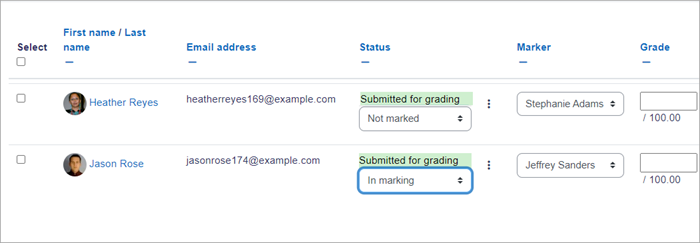
Marking allocation
Marking allocation can be used if marking workflow is set to Yes.
Teachers can then be selected to grade or review submitted work of
specific students.
|
Other settings
Depending on what is enabled for your site and course, you may also need to explore Common module settings, Restrict access, Activity completion, Tags and Competencies
Assignment capabilities
Role permissions for the activity can be changed from the gear icon Actions menu.
Site administration settings
Administrators can access assignment configuration options by expanding Administration > Site administration > Plugins > Activity modules > Assignment.
Assignment settings
Here, the administrator can set defaults for certain settings. They may also make certain settings 'Advanced' which means a course teacher has to click the 'Show more' link to see them, or they may 'lock' settings which means a course teacher cannot alter that setting.
If the site contains courses with over 100 participants, the number of assignments listed on the assignment grading page may be limited using the Maximum assignments per page (assign | maxperpage) setting. This removes 'All' from the 'Assignments per page' setting.
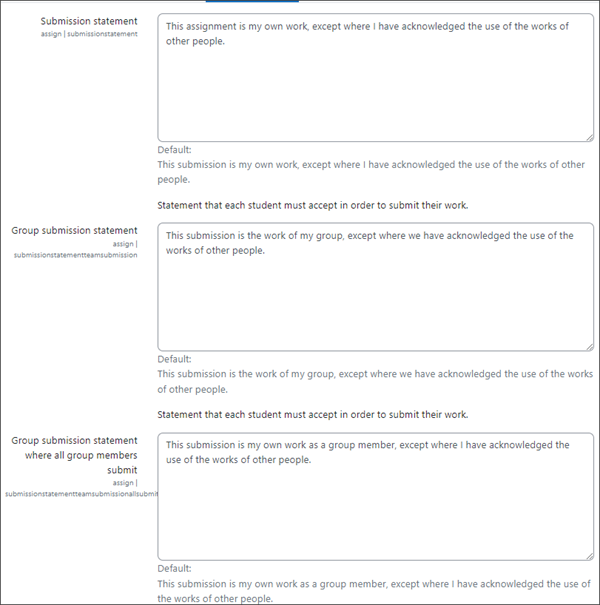
Submission statement
Here is where the administrator can enter text which will appear when
students are about to submit an assignment. There are three options:
| 
|
If it is left as the default "No", then teachers will have the choice within their own assignments to force this or not.
The submission statement may be shown in different languages. See Multi-language content filter for how to do this.
Note for sites using languages other than English: There is currently a bug affecting the default assignment submission statement - it doesn't display in a user's language (MDL-54731). A workaround is to enter the submission statement in the required language (using the multi-lang filter if multiple languages are required) in the 'Submission statement' (submissionstatement) field then save the changes.
Submission plugins
Here the administrator can enable, disable or change the order and default settings for any submission plugins.
Submission comments
Note that if submission comments are enabled here AND comments enabled
globally in Site Administration > Advanced features) then students
will be able to send a message to their teacher when submitting their
assignment. If either of those settings is disabled, then the submission
comments link will not appear.
Feedback plugins
Manage assignment feedback plugins
Here the administrator can enable, disable or change the order and default settings for any feedback plugins.
Annotate PDF
This is the place to upload stamps for teachers to use when annotating
student PDFs.
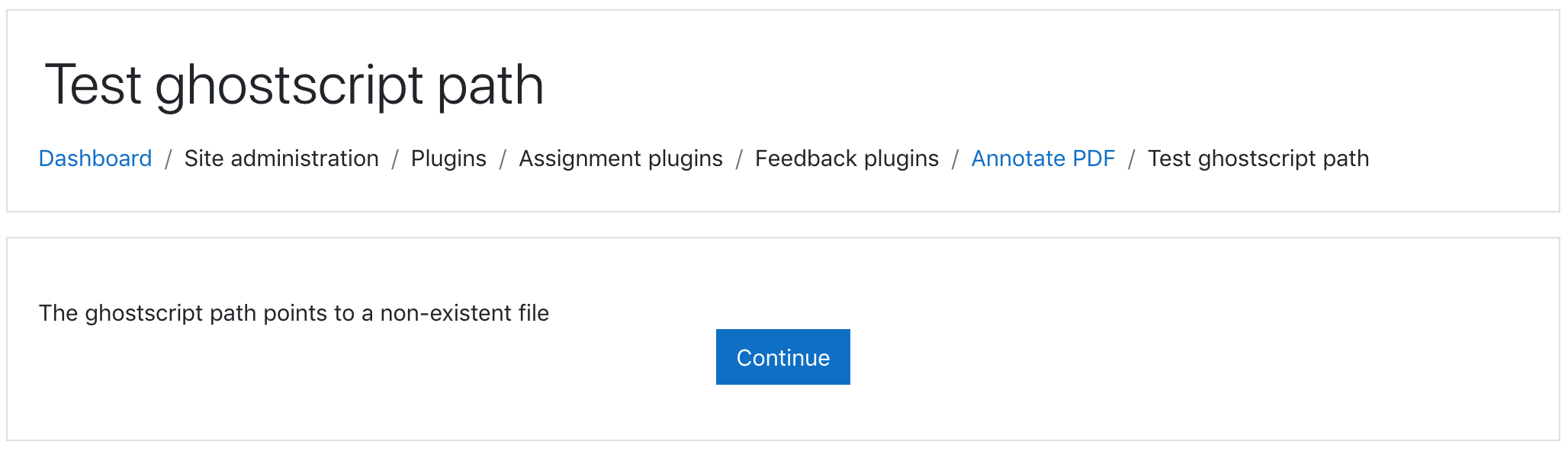
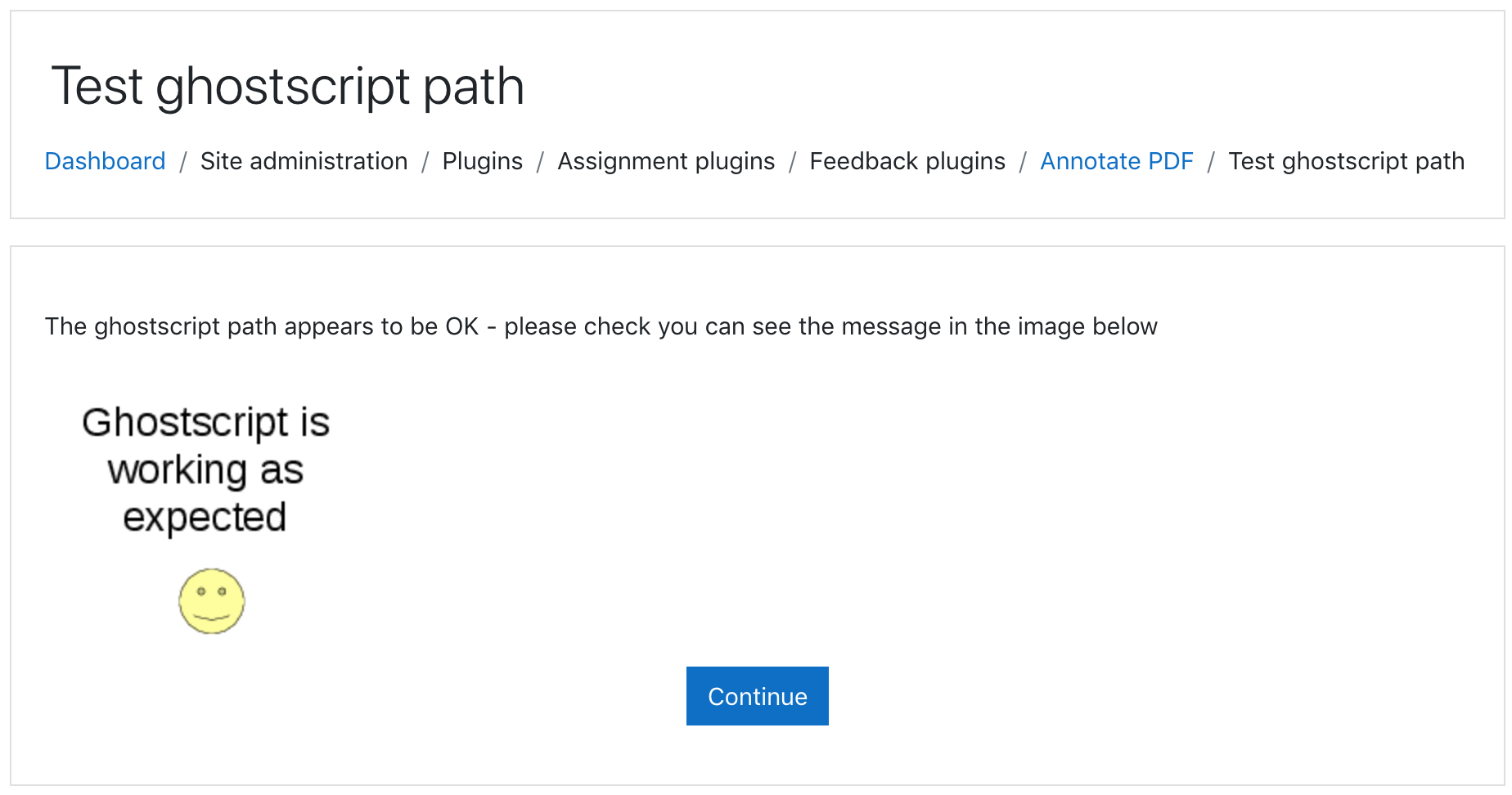
Check Ghostscript
You can also check the ghostscript path from here:
| 
|
If the default stamps are deleted by accident, they can be found in mod/assign/feedback/editpdf/pix and re-uploaded.